
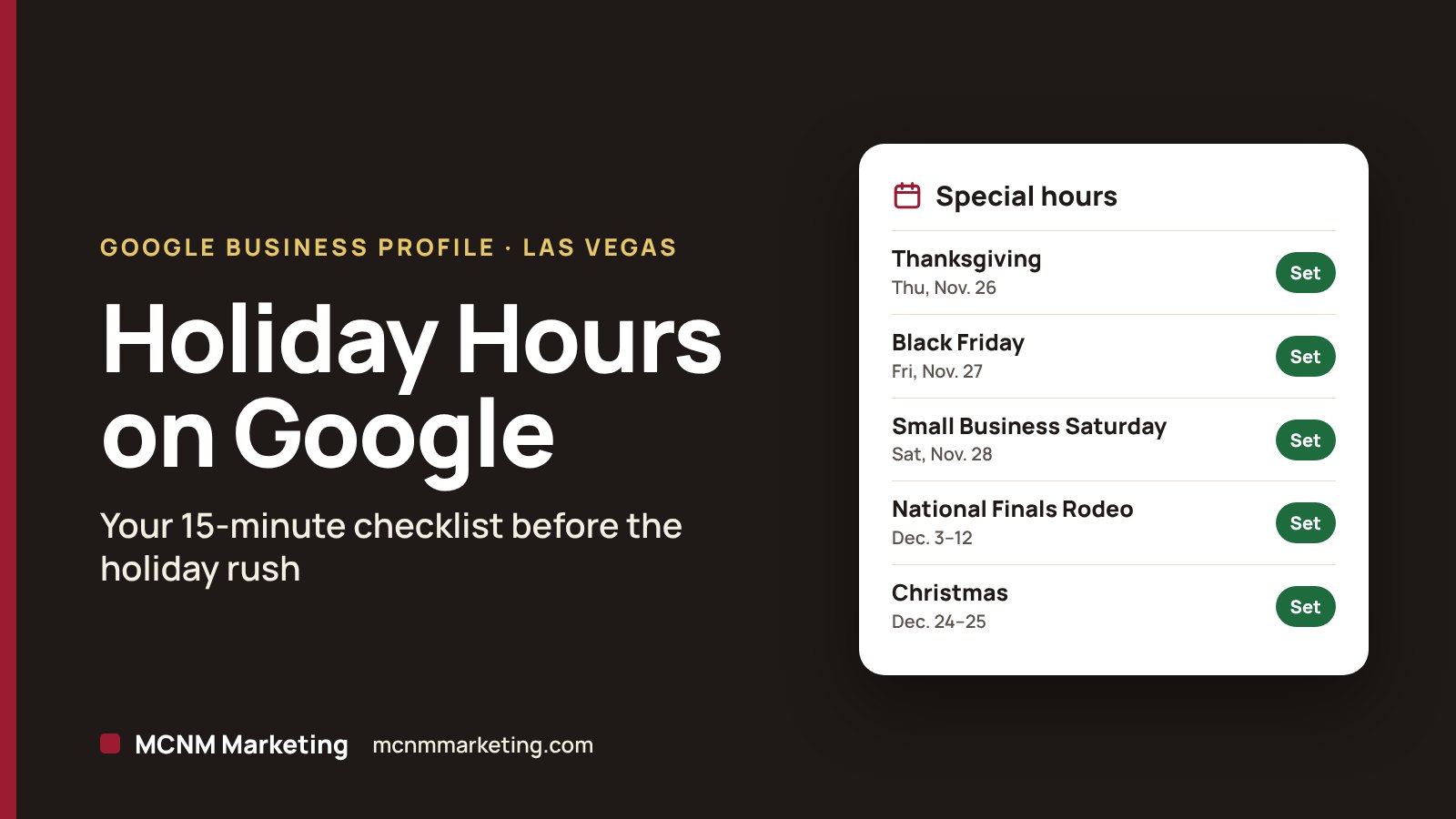
To set Google Business Profile holiday hours, open your profile, select Edit profile, then Hours, and add Special hours for each date your schedule changes. Google also recommends confirming hours for official holidays, even when they stay the same. That one step tells shoppers your hours are accurate before they drive across town.
In Las Vegas, the next few weeks pack in a lot of schedule changes. Thanksgiving, Black Friday and Small Business Saturday land back to back. The National Finals Rodeo runs Dec. 3–12, Christmas and New Year’s follow, and CES opens Jan. 6. This checklist takes about 15 minutes and covers the hours, posts, photos and phone coverage that turn holiday searches into calls and visits.
Free workshop · Tue, Dec. 1 · 10–11:30 AM
Local SEO & Google Business Profile Workshop
Bring your Google Business Profile login and update it during the live walkthrough. MCNM Marketing, 5450 W Sahara Ave Ste 320, Las Vegas. Free. 25 seats.
Reserve my free seatTL;DR
- Use Special hours for holidays and short closures of up to six days in a row. Your regular hours stay the same.
- Confirm official holiday hours even if nothing changes. Google recommends it so customers know your hours are accurate.
- Closed seven days or more? Mark the profile Temporarily closed instead.
- Pair your hours with a holiday Offer or Event post, fresh photos and a plan to answer every call.
- Ask every customer for a review, not just the happy ones, and never trade a discount for a review.
In this guide
- Las Vegas holiday dates to set on your profile
- How do I set holiday hours on my Google Business Profile?
- The 15-minute holiday checklist
- What customers see after you update your hours
- Common holiday mistakes to avoid
- Where to get help with your Google Business Profile
- Frequently asked questions
Las Vegas holiday dates to set on your profile
Add special hours now for every date your schedule changes. These are the dates that matter most for Las Vegas businesses this season.
| Date | Day | What’s happening | What to check |
|---|---|---|---|
| Nov. 26 | Thursday | Thanksgiving | Closed or short hours |
| Nov. 27 | Friday | Black Friday | Early opening or late close |
| Nov. 28 | Saturday | Small Business Saturday | Extended hours and an Offer post |
| Dec. 3–12 | Thursday–Saturday | National Finals Rodeo | Late nights and weekend staffing |
| Dec. 24 | Thursday | Christmas Eve | Early close |
| Dec. 25 | Friday | Christmas Day | Closed or special hours |
| Dec. 31 | Thursday | New Year’s Eve | Early close or a late night |
| Jan. 1, 2027 | Friday | New Year’s Day | Closed or special hours |
| Jan. 6–9, 2027 | Wednesday–Saturday | CES | Extended hours if you serve visitors |
The Small Business Saturday date comes from the U.S. Small Business Administration. The rodeo dates come from Las Vegas Events, and the CES dates come from CES. Links are in the sources at the end.
How do I set holiday hours on my Google Business Profile?
Google’s help page lays out the steps. They work on a computer or a phone:
- Go to your Business Profile on Google Search or Maps.
- Select Edit profile, then Hours.
- Next to Special hours, select Edit.
- Pick a holiday Google suggests, or add a date.
- Enter your hours for that day, or mark it Closed.
- Select Save.
Managing many locations? Google also lets you add special hours in bulk with a spreadsheet.
Confirm holidays even when your hours don’t change
Google recommends confirming your hours for official holidays even if they match your regular schedule. It makes clear to customers that your hours are accurate. Open on Black Friday with normal hours? Confirm it anyway.
Late nights and overnight hours
Vegas runs late, so this one matters here. Google limits each set of special hours to 24 hours. If a set runs from before midnight one day to past noon the next day, break it into separate sets. For example, hours from 8 PM on Dec. 31 to 2 PM on Jan. 1 go in as two sets, one for each date.
Closed for a week or more?
Special hours cover closures of up to six days in a row. If you close for seven days or more, or you don’t know when you’ll reopen, Google says to mark the business Temporarily closed instead.
Make sure special hours can show
Special hours only show when your business hours are set to Open with main hours. Check that setting before you add holiday dates.
The 15-minute holiday checklist for your Google Business Profile
Hours come first. These six steps get the rest of your profile ready for holiday searches.
1. Add More hours for takeout, delivery or senior hours
If some services run on different times, Google lets you add More hours, such as senior hours or delivery and takeout hours. A Henderson bakery that closes its counter at 6 PM but offers takeout until 8 PM should show both.
2. Post your holiday offer or event
Use an Offer post for a Small Business Saturday deal. Google requires a title, dates and times, and it adds a View Offer button. Hosting a holiday open house? Use an Event post with a title and start and end dates and times. If you skip the times, Google shows the event as lasting 24 hours. Our guide to Google Business Profile posts walks through each post type.
3. Add fresh holiday photos
Upload a few new photos: your decorated storefront, a gift display, your team on the job. Real photos from this month show customers you’re open and active. Skip stock images.
4. Test your phone number, website and booking links
Call your listed number from a cell phone. Tap your website and booking links. A broken link during the busiest week of the year sends shoppers to the next listing on the map.
5. Make sure someone answers
Holiday hours bring calls at odd times. Decide who picks up, record a voicemail greeting that repeats your holiday hours, and reply to messages the same day. If you can’t staff the phone, an AI front desk with a clear handoff to your team can answer for you.
6. Answer reviews and ask every customer for one
Holiday traffic brings holiday reviews. Reply to each one. When you ask for reviews, ask every customer, not only the happy ones. Google’s policy prohibits selectively asking for positive reviews, and it prohibits offering incentives such as discounts in exchange for a review.
What customers see after you update your hours
After you change your hours, Google says customers may see a message on your profile that confirms the recent update. On mobile, a post confirming the change can also appear on your Updates tab. You can edit that post to add details, like “Open Black Friday 7 AM to 9 PM.” To remove both the message and the post, delete the post.
Common holiday mistakes to avoid
- Changing your regular hours for one holiday. Use special hours so your normal week stays intact.
- Marking the business Temporarily closed for a single day. That setting is for closures of seven days or more.
- Skipping holidays when you’re open. Google recommends confirming official holidays even when nothing changes.
- Posting an offer without dates. Offer posts require a title, dates and times.
- Trading discounts for reviews. It breaks Google’s review policy.
- Letting your website say something different. Put the same holiday hours on your site, your social pages and your voicemail.
Where to get help with your Google Business Profile
Holiday hours take minutes. Staying in the Map Pack all year takes a complete profile: categories, services, photos, reviews and posts. Our Google Business Profile optimization checklist covers all 15 steps.
Want a quick read on where you stand? Take the free Local Visibility Score checkup. It takes about two minutes. Prefer to hand it off? See our local SEO services in Las Vegas, or call (702) 608-4226.
Our perspective
Holiday hours are one of the easiest wins on a Google profile, and one of the easiest to forget. A customer who drives to a locked door on Black Friday may not give you a second chance in January.
We judge marketing by calls, visits and revenue, not likes. Accurate hours are part of that math. So is answering the phone during the hours you post.
If you want help, bring your login to our free workshop on Dec. 1. We’ll walk through the profile live, and you can make updates during the session.
Michael O. Franklin Jr., founder, MCNM Marketing
Frequently asked questions
How do I add holiday hours to my Google Business Profile?
Open your Business Profile on Google Search or Maps and select Edit profile, then Hours. Next to Special hours, select Edit. Choose a suggested holiday or add a date, then enter your hours or mark the day Closed. Select Save. Your regular weekly hours stay the same.
Should I confirm holiday hours if they’re the same as usual?
Yes. Google recommends confirming your hours for official holidays even when they match your regular schedule. It makes clear to customers that your hours are accurate. Confirming takes a few seconds per date and removes doubt for anyone checking your profile before they drive over.
What if my business closes for more than a week over the holidays?
Special hours cover closures of up to six days in a row. If you will be closed seven days or more, or you don’t know when you’ll reopen, Google says to mark your business Temporarily closed. Switch it back to open as soon as you return.
Do I need to change my holiday hours back after the holiday?
No. Special hours apply only to the dates you choose, and your regular hours stay unchanged. It’s still smart to open your profile in early January, check your Performance report and make sure your listing shows your normal weekly schedule again.
Can I promote a holiday sale on my Google Business Profile?
Yes. Create an Offer post. Google requires a title, dates and times, and it adds a View Offer button for you. You can also add a description, photo, coupon code, link and terms. Keep the terms short so customers know exactly what they get and when it ends.
Sources
- How to set special hours (Google Business Profile Help)
- Edit your business hours (Google Business Profile Help)
- Create and manage posts on your Business Profile (Google Business Profile Help)
- Prohibited and restricted content policy for Maps contributions (Google)
- Small Business Saturday (U.S. Small Business Administration)
- 2026 Wrangler National Finals Rodeo dates (Las Vegas Events)
- CES 2027 (Consumer Technology Association)
Get your Google profile ready for the new year
Join our free Local SEO & Google Business Profile Workshop on Tuesday, Dec. 1, 10–11:30 AM, at 5450 W Sahara Ave Ste 320, Las Vegas. Seats are limited to 25.
Reserve my free seatCall (702) 608-4226
Leave a Reply